
Self-Hosted Setup Guide
In order to use your Golden Night robot, you need to have an account with a broker. See it as an investment account that you, and only you, have access to. You should never give out your broker details to anyone. To ensure maximum capability with Golden Night, we have chosen a broker with trust and which is officially regulated and we strongly recommend using this broker. If you use any other broker and has trouble, please contact us for support.
If you have any other questions, you can always read the FAQ or contact us.
If this seems like too much trouble to you, remember you can always get our Hands Off package and leave all of it to us.
Step 1
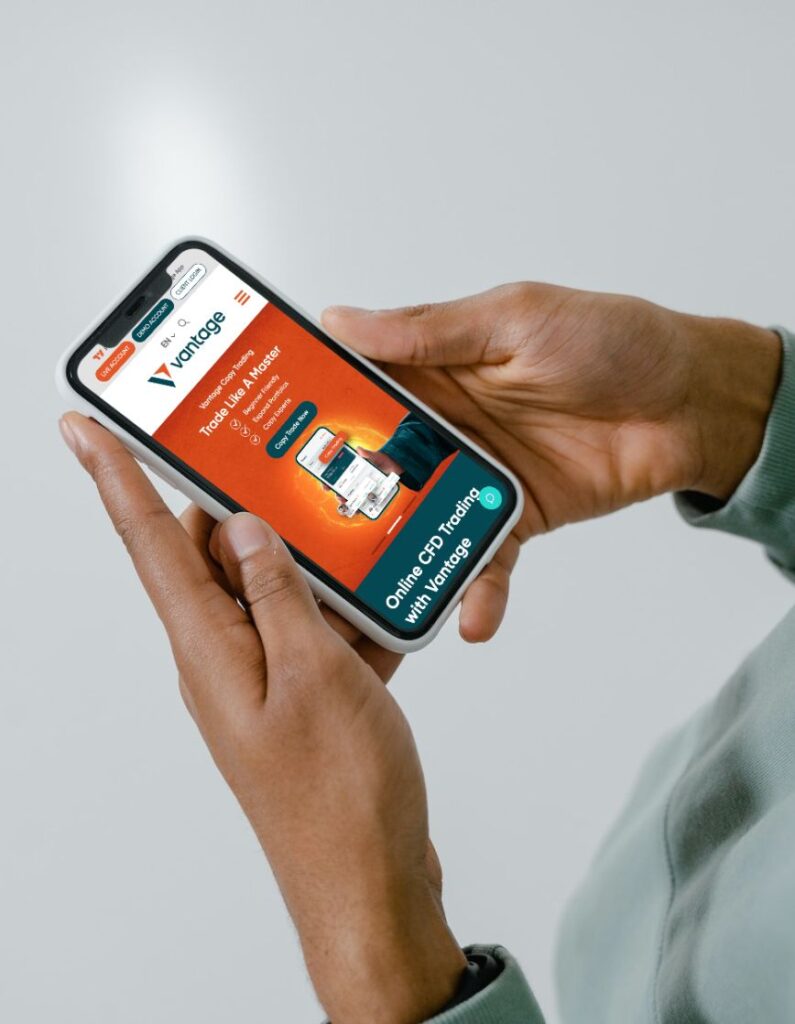
Go to the Vantage Website
Visit the Vantage website
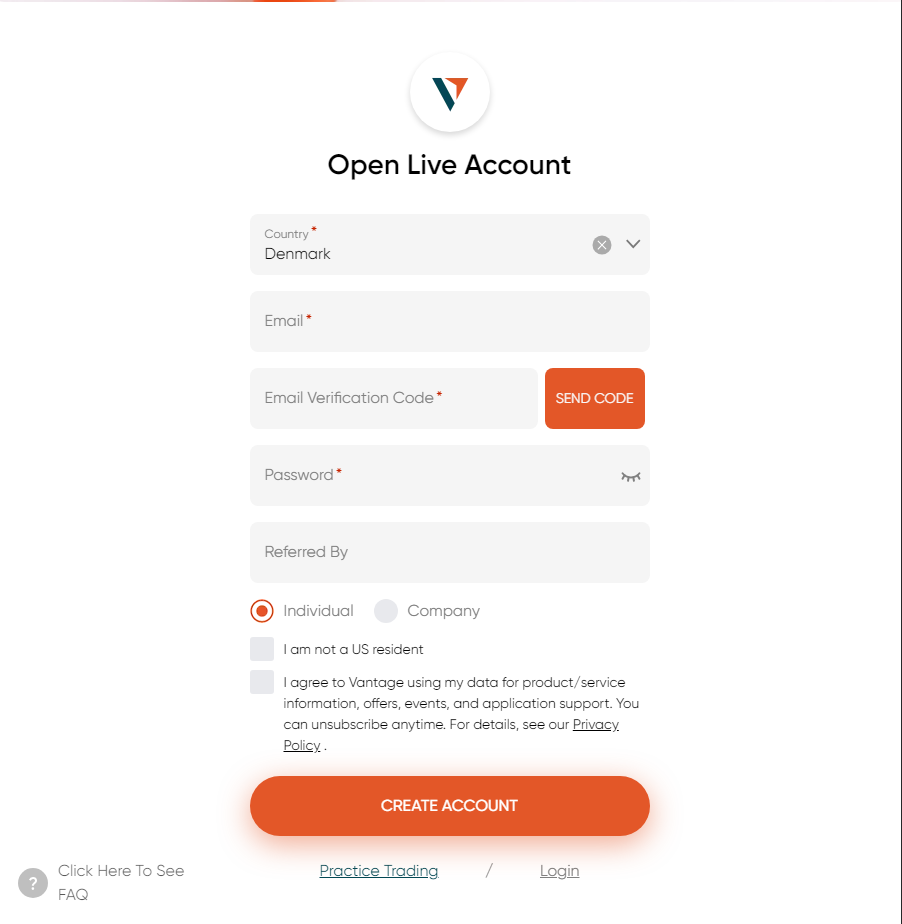
Fill out the required fields, validate your email and click Create Account.
If you want to use another broker, you can skip to step 5.
Step 2
Open a Trading Account
Navigate to the accounts page on the left menu bar. Tap the “Open Account” next to the plus icon and choose the following settings and click Submit.

Step 3
Confirming Trading account
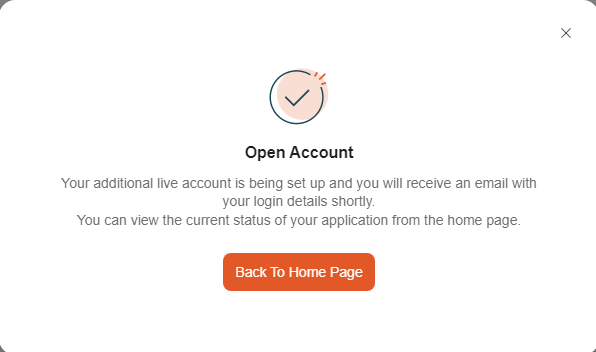
When you have created the account, you should be met with the following pop-up.
Wait a bit and you should see the Trading Account in the list and you should recieve a email with you new Trading Account credentials.
If by any chance your leverage column does not show 500 : 1, please contact us.
Step 4
Depositing Money to your Account
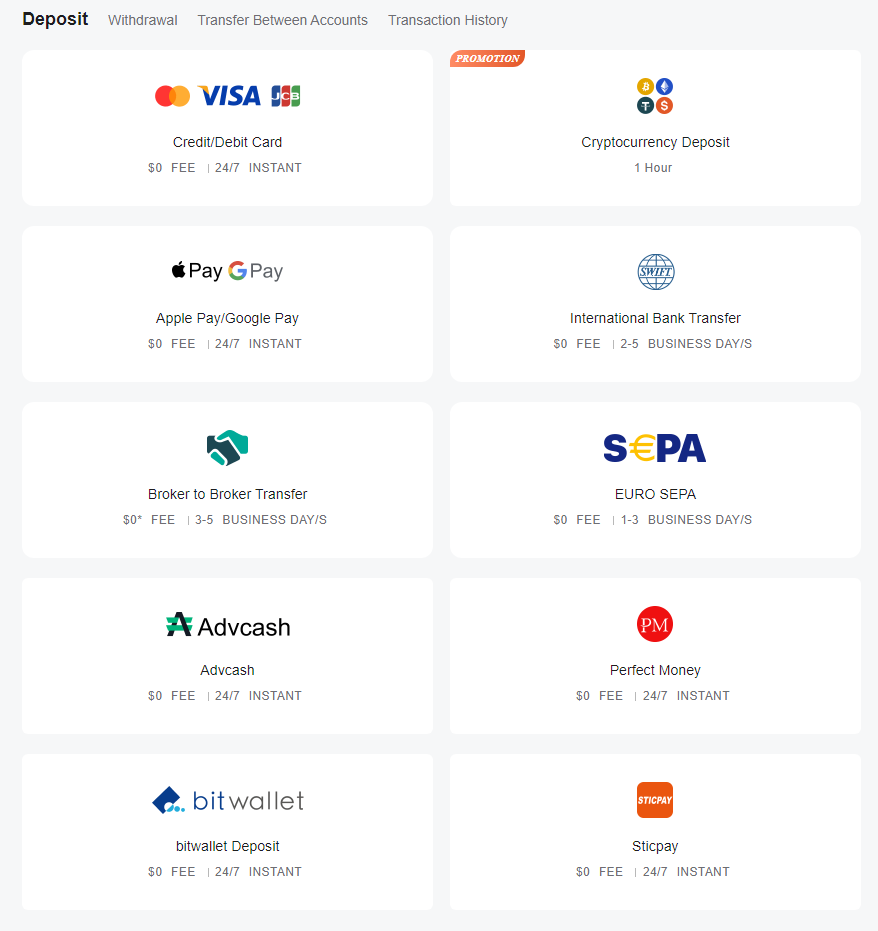
When you can see your trading account show under the “Accounts” tab, click the “Deposit” button and be met by options to deposit.
Please choose your preferred deposit method. Golden Night recommends a minimum of $3000 U.S. Dollars or €3000 Euro and optimally $5000 U.S. Dollars or €5000 Euro.
Any less will increase the risk of your investements.
Please be advised that if you use VISA only in some countries you might have a daily softcap that is lower than the recommend amount – this can be circumvented by using Bank Transfer or depositing over 2 days.
Step 5
Meta Trader 4 Terminal Setup
You can find a download of the MetaTrader4 terminal from your broker; if in doubt, ask their support.
For us, we’ll go through Vantages setup. You can download Vantages’ client for Meta Trader 4 here.
Step 6
Login to Your Account
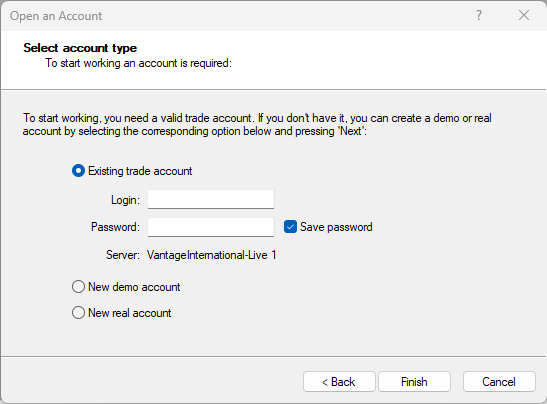
When you have installed the terminal, navigate to File > Open an Account in the navitgation menu to the upper left.
Then choose the server you got in your email after you created your Vantage account in the first steps.
It would be called “VantageInternational-Live 1” where the number can be any number. Then, in the next part, you type in the login and password you got in the same email.
Step 7
Adjusting Chart and Timeframe
Ensure the XAUUSD+ chart is open in the main window (it should be by default. If it is not, rigfht click on it and click open chart and close all other charts.
After that, just above the chart and chart list, ensure the timeframe is set to M5.


Step 9
Installing the Expert Advisor
Now, we need to install the Golden Night Expert Advisor.
(For Mac, see this link)
Navigate to File > Open Data Folder.
Go to the MLQ4 folder.
Go to Experts folder.
Drag the TheGoldenNightScalpingEA.EX4 into the folder.
Step 10
Set Up the Expert Advisor
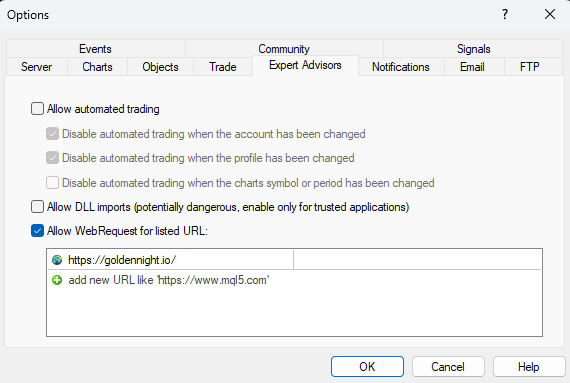
Navigate to Tools > Options.
Go to the “Expert Advisors” tab.
Ensure the “Allow WebRequest for listed URL” is ticked. Then, enter “https://goldennight.io/” as a new URL so it looks like this:
Step 11
Update the EA in the Terminal
Go to the navigator in the left panel and right click on the Expert Advisors, then click “Refresh”.
It should then look like this:

Step 12
Enable the Expert Advisor
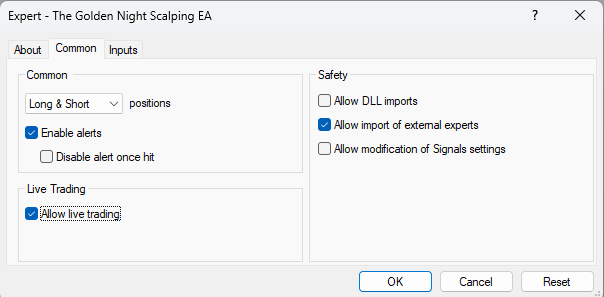
In the list over Expert Advisors, drag the “The Golden Night Scalping EA” into the XAUUSD+ Chart. It it props you to stop the current Expert Advisor, click “Yes”.
A pop-up will come. Navigate the “Common” tab. Make sure to click the “Allow live trading”. It should look like this:
Step 13
Setting on the Expert Advisor
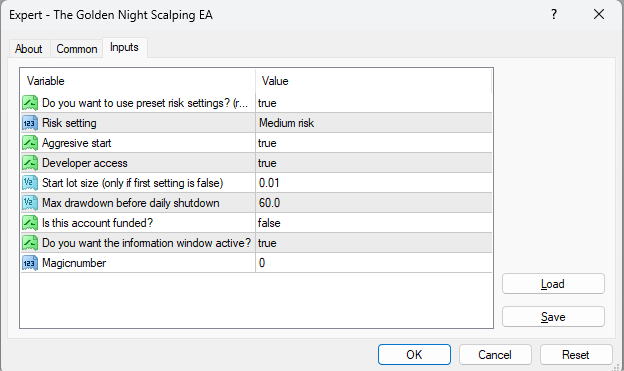
In the same pop-up, in the third tab “Inputs”, you will find the EA settings. We strongly recommend you to go with the advised settings
There are limited settings to work with as the robot is a plug&play solution.
1. To use the pre-set risk profiles: set “Start lot size” to false
2. Risk setting: Choose between low, medium, high (recommend low or medium)
3. Aggressive start: Adjusts your first trades to start more aggressively than the rest of the day’s trades, automatically detects risk profile and account size, must be actively enabled.
4. Developer access: By default, this feature is active. If you disable it, the developer cannot shut down your robot or activate the ‘dead-man switch’ as an extra safety feature. It is recommended to keep this feature active.
5. Lot size adjustment: Applies only if the first setting is turned off
6. Max drawdown: percentage drawdown on your account before the robot shuts down for the day and closes all active trades
7. Funded account: adjust risk further if your account is funded (based on drawdown percentage)
8. Information window: do you want the information window enabled while the robot is running?
9. Magic number: used to customize a magic number that the EA uses; this is automatically changed by the system – it can be adjusted as desired
Step 14
Turning on the Expert Advisor
All you need to do now, is turning on the Golden Night.
To do so, in the top panel you must enable “AutoTrading” by clicking on it. It will turn green when enabled.

Step 15
You’re All Set Up!
Congratulations! You have now done all the work you need to do for your investments to start growing. While it might take 24 hours for the system to kick in, there is nothing else you need to do.
However, it’s always nice to track what your investment are doing, and there is a few ways to do so: The Vantage homepage, the Vantage App or what most prefer, the MetaTrader 4 App which you can find our guide for here.
Just remember: do not trade on this account. If you do, you will not allow the software to work as intended.
And if you want to help Golden Night, you can go to the last step!
Optional
The Golden Opportunities
Now that Golden Night is working for you – and we are stoked to have you onboard! – we would like to connect with you even more.
To help us grow, we would be honored if you’d follow us on our socal media platforms and even share your experience and your earnings with the rest of our community! You can find them here:
You can also join our affiliate partner program and earn yourself up to 50 percent of the sale’s price – and that, should we say so ourselves, a partnership that pays both ways.
So what are you waiting for? Join us as partner here