
MetaTrader 4 Setup Guide
If you followed our setup guide, you know there is a few ways of following your investments. Besides the Vantage homepage and the Vantage App, you can use the MetaTrader 4 App to do so. To help you get started if you wish this setup, we have composed a quick guide for you.
Step 1
Download the Meta Trader 4 App
Depending on your device, visit the Apple App Store or Google Play Store and type “MetaTrader 4”. Install it on your device.
It’s important the version you download is the 4th installment, as we do not support MetaTrader 5.
Step 2
Login to your Trading Account
If you followed our Setup Guide, then you have created a Trading Account through Vantage. In order to see your account, you need to login to that account on the MetaTrader 4 App.
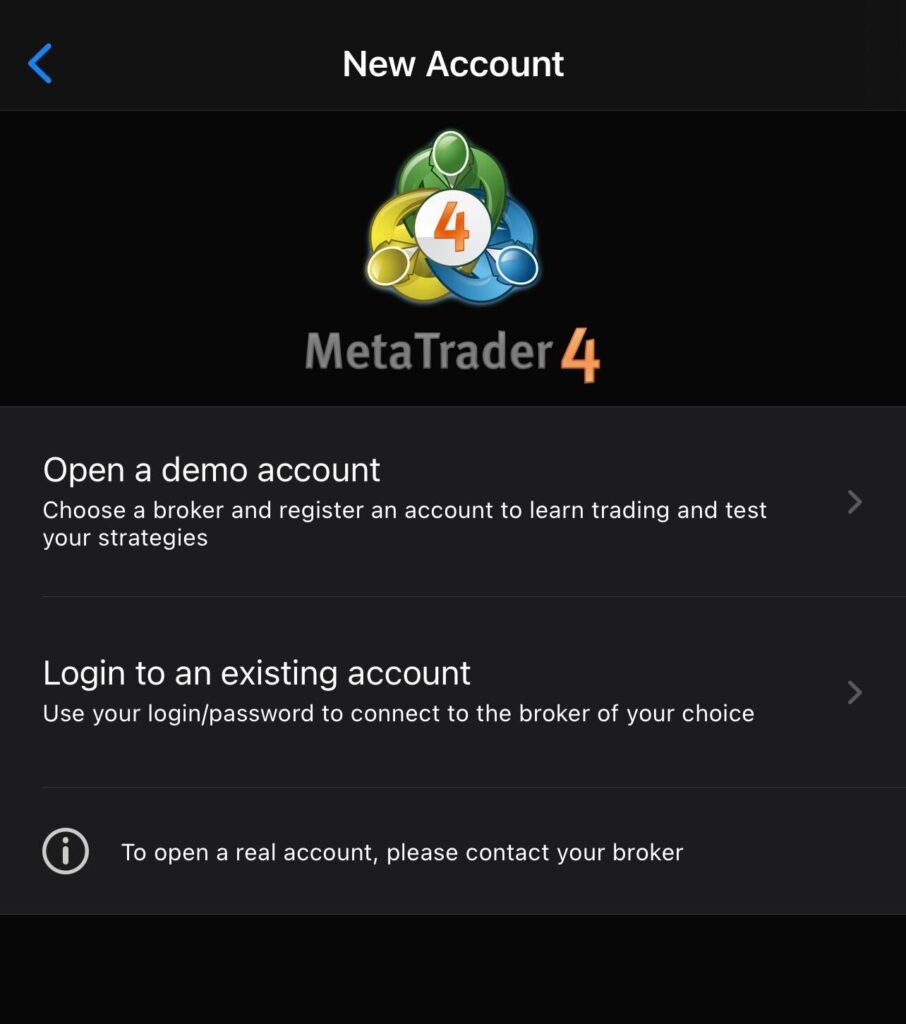
Under Settings, tap the top item called “New Account”. Click on the “Login to an existing account”.
Step 3
Find your brokerage server
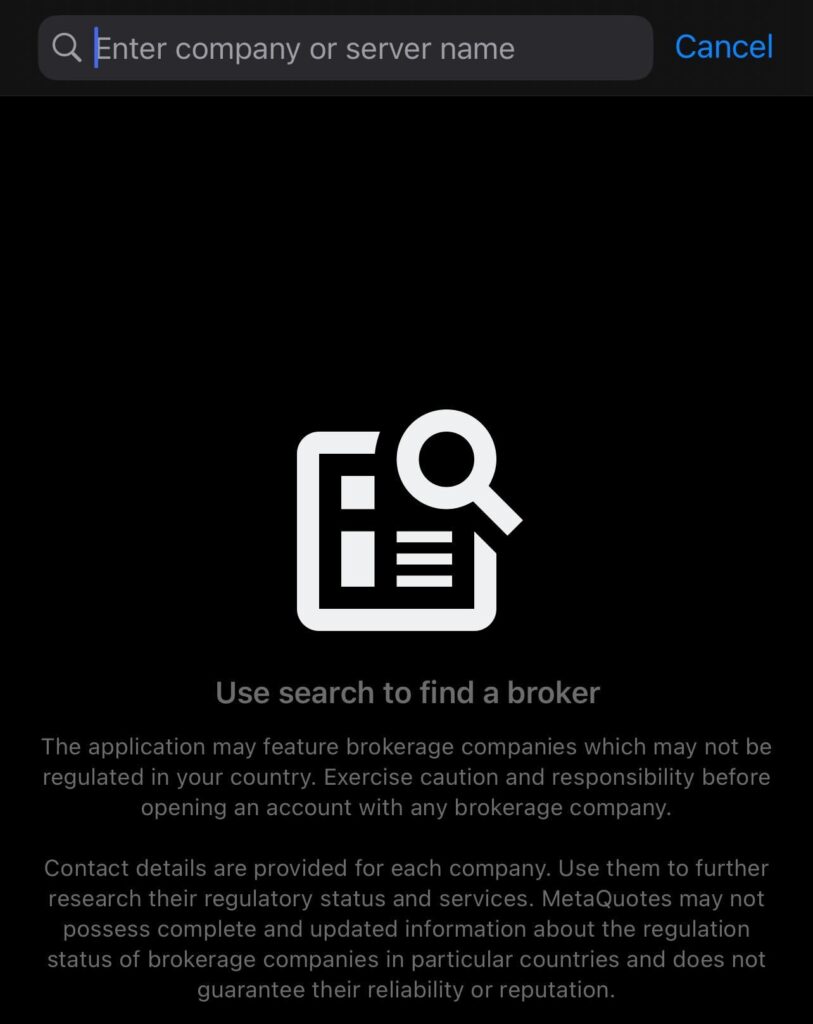
In order to login, you first need to specify the brokerage server that you would like to login to.
If you have used Vantage, you have recieved this in a seperate email. Vantages live servers are typically called “VantageInternational-Live” followed by a number. Search for your server that you recieved and tap it.
Step 4
Fill In your Account Details
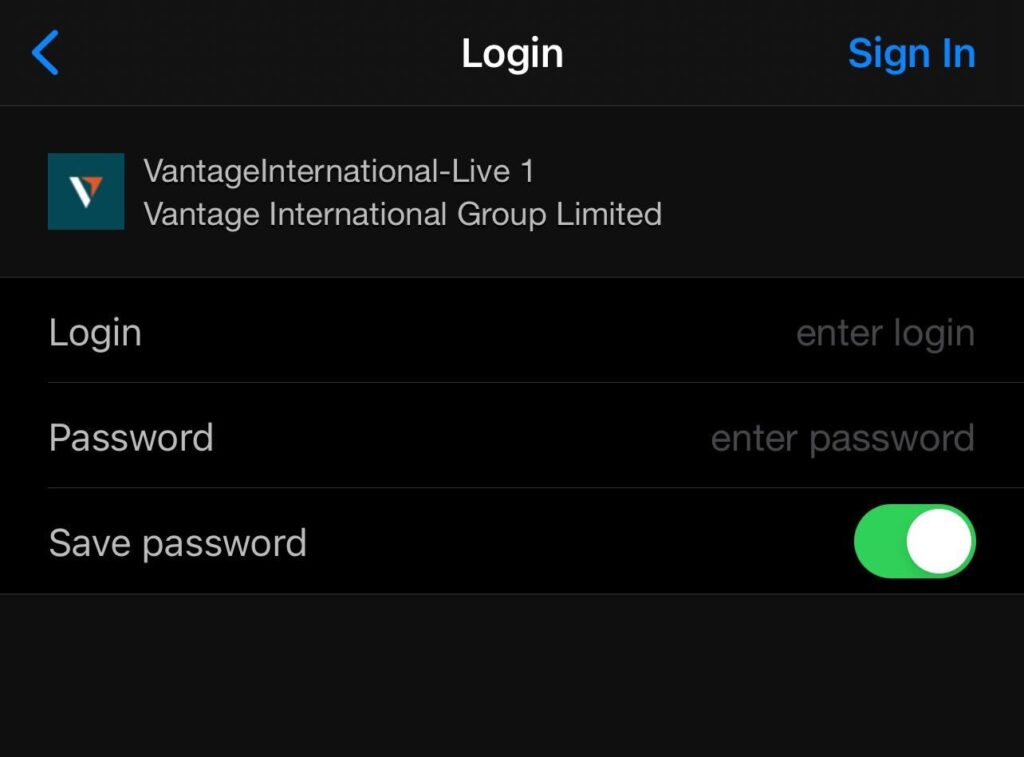
In this step, you just fill on your login and password details you recieved in your email from Vantage.
When you have typed them in, tap “Sign In”
Step 5
You are All Set Up!
That’s it! You can now follow your investments at your own leisure.
Under the “Trade” tab you can see you account balance, equity and any ongoing trades.
Under the History tab you can see the daily, weekly and monthly profits respectively (or custom period).
However, we must highlight with outmost importance that you do not close or open any trades while connected to the Golden Night Software. Use this tool to follow your investments, lean back and enjoy as profits never sleep.